

A café appears in a travel video, but typing its English name into Naver Map gives you nothing—or a branch across the city. Start with the business’s own Korean name and street address, not another guessed spelling. Changing the app language helps you read the interface; it does not prove that every English nickname identifies the right listing.
Source check: October 2, 2026. This is a source-based troubleshooting guide, not a claim that every step was tested on every phone. App menus can change.
First, separate three different problems
- You cannot read the buttons: change the interface language.
- The place is missing or the results look wrong: recover the original business name and address.
- The pin is right but you cannot find the door: check the building, floor, station exit, and entrance.
These require different fixes. Reinstalling the app will not identify a café whose video caption uses an unofficial English nickname. An accurate pin also will not tell you which side of a large shopping complex has an accessible entrance.
Set the language without changing your destination
NAVER’s official language instructions describe MY/profile → settings gear → Language. Android lets you select the language there; on iOS the setting leads to the device’s NAVER Map language preferences. Supported choices include English, Korean, Simplified Chinese, and Japanese. If the preferred-language option is missing on iOS, NAVER says to add a supported language in the device’s Language & Region settings. Its Place Agent answers are currently described as Korean-only; that is separate from the map interface.
The address-first recovery workflow
- Go back to the original listing. Use the business’s own website, booking confirmation, or official social profile. Copy its Korean name, road-name address, and branch designation into a note.
- Search the exact Korean business name. Keep the branch name. A chain’s flagship, station branch, and neighborhood branch are not interchangeable.
- If that fails, search the street address. NAVER’s map feature guide lists addresses alongside places, bus stops, and subway stations as searchable information.
- Compare the result, not just the name. Match the address and district. Check the listing’s phone number or official link when available. Do not assume that the first result is correct.
- Save the confirmed place and address. Use the app’s saved-place features where available; also keep the address in a plain note so you have a fallback if the app is unavailable.
NAVER says its road-name address search draws on the Ministry of the Interior and Safety’s official address system. That is a reason to prefer a supplied road address over an improvised translation—not a guarantee that a particular business listing is current. See its address-search explanation.
Make a destination card before leaving
For each difficult-to-find stop, save five fields: Korean business name; full street address; branch; floor or building entrance; and the official contact or reservation link. For a hypothetical café, the useful note is not merely “viral café near Hongdae.” It is the exact branch and address supplied by that café. Leave unknown fields blank rather than filling them with guesses.
When walking, zoom in before crossing a road. Compare the route endpoint with the entrance and building signage. NAVER’s feature guide describes street view, orientation controls, and indoor information where available; use them as supporting clues rather than proof that a shop is open today. Opening hours and temporary closures should be checked with the business.
Use real-world signs to double-check a pin
A map pin is only one clue. Once you are near the destination, compare its name and road address with the actual station or street signs. These two photographs show examples from Seoul—not the same destination, and not screenshots of NAVER Map.
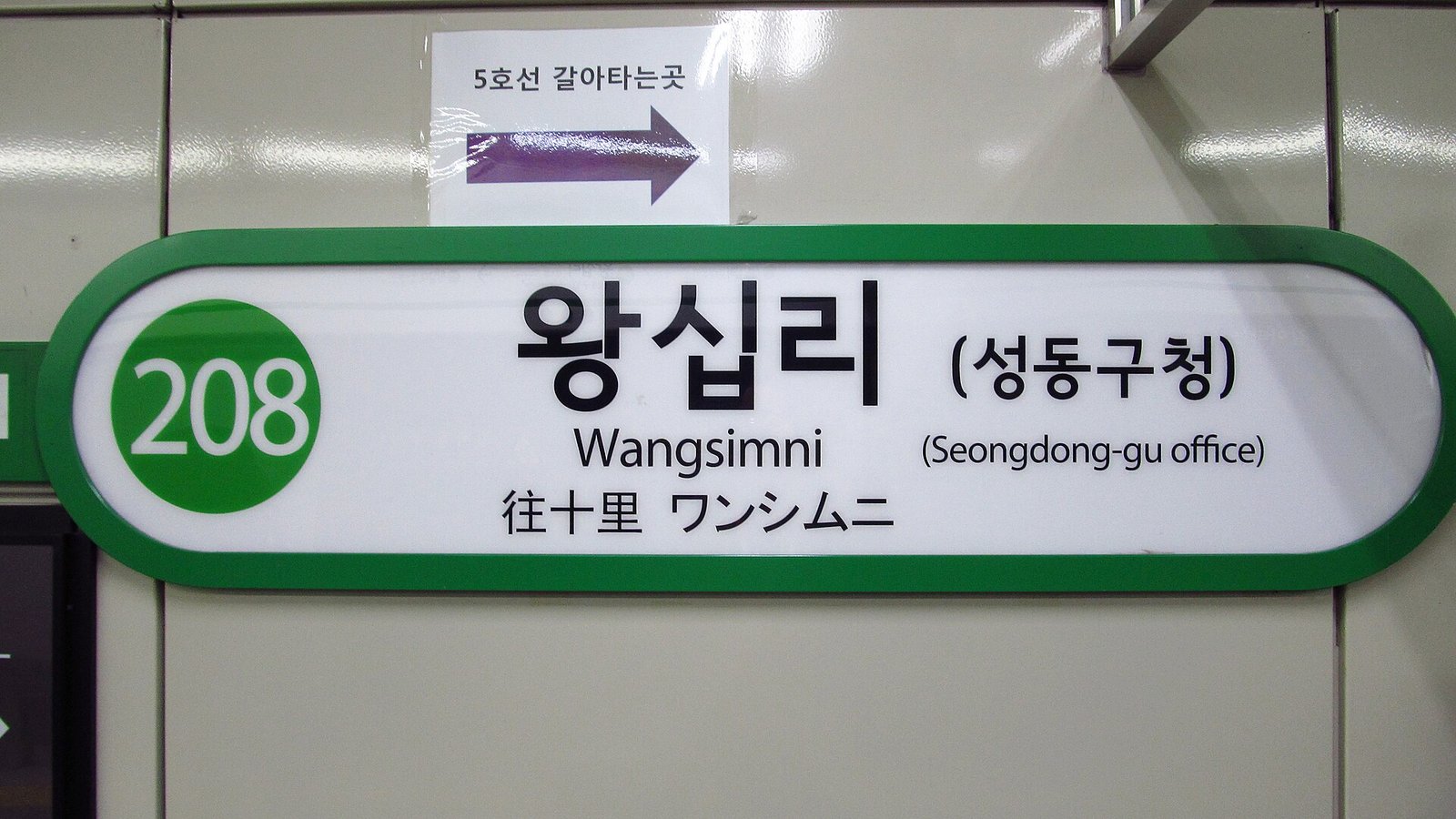



If nothing matches
Ask the business to send its NAVER Map link or Korean road address. A shared pin is easier to verify than a long exchange of transliterations. If you use a translation app, translate the message explaining what you need; preserve the original proper name and address when copying them into the map.
Do not start a taxi ride to an unverified pin and hope to correct it later. Confirm the same address in your taxi app and map. Our Korea taxi guide covers ride options; the essential apps overview explains how mapping, translation, and transport tools fit together.
Reader check: Which search failed—an English name, a Korean name, or an address? Share the type of problem without posting your accommodation’s private access code or room details.
Illustration: AI-assisted artwork created for Local Korean Guide. It depicts a general travel scenario, not a documentary photograph or an actual app screen.